Blog
Blog
WordPress is an open-source content management system (CMS) that allows anyone to create, manage, and grow websites without needing advanced technical skills. WordPress began as a blogging platform and has grown into the world’s most widely used website-building tool, powering blogs, business websites, online stores, and learning platforms. Its intuitive dashboard, flexible theme, and plugin system help both beginners and professionals build and grow websites with ease.
Well-known organizations and global brands trust WordPress to power their websites. Platforms such as NASA, Disney General Entertainment Press, and Nutribullet use WordPress to run everything from simple pages to large, content-rich websites.
But what exactly is WordPress? Is it just for blogs? How does it work “under the hood”? And why does it power over 43% of all websites on the internet? In this ultimate guide, we will break down everything you need to know, from the absolute basics to advanced professional techniques.
1. The History and Philosophy of WordPress
To understand where WordPress is going, we must look at where it began. WordPress was born in 2003 when Matt Mullenweg and Mike Little created a “fork” (a spin-off) of an existing blogging software called b2/cafelog.
Their goal was simple: to create a platform that made publishing online easy and accessible. They built it as open-source software, meaning the code is owned by the community, not a single corporation. This philosophy of “democratizing publishing” is the reason WordPress remains free and constantly evolving.
The Power of the GPL
WordPress is licensed under the GPL (General Public License). This license guarantees four fundamental freedoms:
- The freedom to run the program for any purpose.
- The freedom to study how the program works and change it.
- The freedom to redistribute copies.
- The freedom to distribute copies of your modified versions to others.
This open nature helped foster a massive global ecosystem of developers, designers, and entrepreneurs who created themes and plugins, transforming a simple blogging tool into a multi-billion-dollar economy.
2. WordPress.org vs. WordPress.com: The Great Divide
The most common point of confusion for beginners is the difference between “the two WordPresses.”
WordPress.org (The “Real” WordPress)
This is the self-hosted version. You download the software for free from WordPress.org and install it on your own web server.
- Pros: Complete control, unlimited customization, ability to monetize as you wish, and full access to the code.
- Cons: You are responsible for buying a domain, paying for hosting, and managing backups/security.
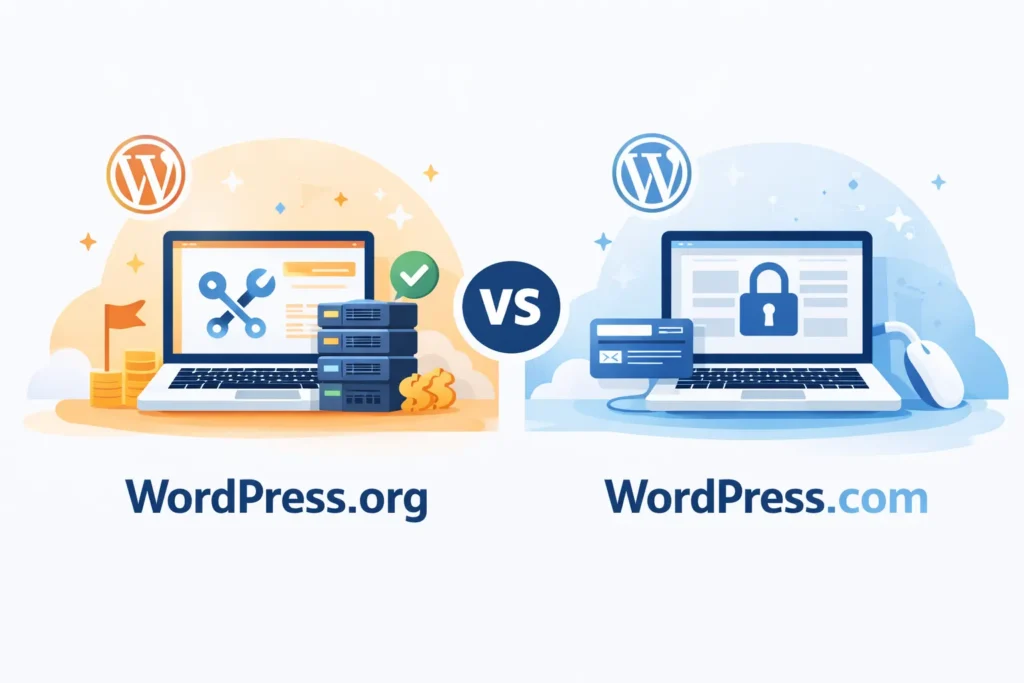
WordPress.com (The Hosted Service)
This is a for-profit service owned by Automattic (Matt Mullenweg’s company). It’s similar to builders like Wix or Squarespace.
- Pros: Easy to set up, includes hosting, and handles maintenance for you.
- Cons: Highly restrictive on free/cheap plans (you can’t install most plugins or themes), expensive to unlock professional features, and you don’t truly “own” the platform.
Verdict: For any professional, business, or serious blogger, WordPress.org is the only logical choice.
3. How WordPress Works: The Technical Architecture
For the pros, understanding the technical stack is essential. WordPress is not a static site; it is a dynamic web application driven by a database.
The “LAMP” Stack
Most WordPress sites run on a LAMP environment:
- Linux: The operating system of the server.
- Apache/Nginx: The web server software that handles requests.
- MySQL/MariaDB: The database where your content is stored.
- PHP: The programming language that stitches everything together.
The Database Structure
When you write a post, it isn’t saved as an HTML file. It is stored as a row in the wp_posts table of your database. When a visitor clicks your link:
- The browser sends a request to the server.
- The server runs WordPress’s core PHP files.
- WordPress queries the database to find the specific post content.
- WordPress combines that content with your Theme files.
- The server generates a finished HTML page and sends it to the visitor’s browser.
4. The Anatomy of a WordPress Site
Every WordPress site is composed of three main parts:
A. The Core
This is the heart of the system. It contains the files that make the dashboard work, handle user logins, and manage the database. You should never edit the core files, as updates will overwrite your changes.
B. Themes (The Skin)
Themes control the visual presentation. A good theme doesn’t just look pretty; it is optimized for speed, accessibility, and SEO.
- Classic Themes: Use PHP templates.
- Block Themes: Use the modern Full Site Editing (FSE) features.
C. Plugins (The Muscles)
Plugins allow you to add functionality without writing code. Need a contact form? There’s a plugin for that. Need to sell products? There’s a plugin for that. There are currently over 60,000+ free plugins in the official repository.
5. Getting Started: A Detailed 5-Step Roadmap
Step 1: Choosing Your Hosting Environment
Don’t settle for the cheapest hosting possible. Look for these “WordPress-friendly” web hosting features:
- PHP 7.4 or higher (PHP 8.2+ is ideal).
- MySQL 5.7+.
- SSL Certificate (Essential for security and SEO).
- Server-side Caching (Object cache like Redis).
Step 2: The Installation Process
Most hosts offer a “1-click install.” If you prefer the manual way (the “Famous 5-Minute Install”):
- Upload WordPress files via FTP.
- Create a MySQL database and user.
- Rename
wp-config-sample.phptowp-config.phpand enter your database details. - Run the installation script in your browser.
Step 3: Configuring Core Settings
Before you start blogging, go to Settings > Permalinks and set it to “Post Name.” This makes your URLs clean (e.g., yoursite.com/my-post/ instead of yoursite.com/?p=123).
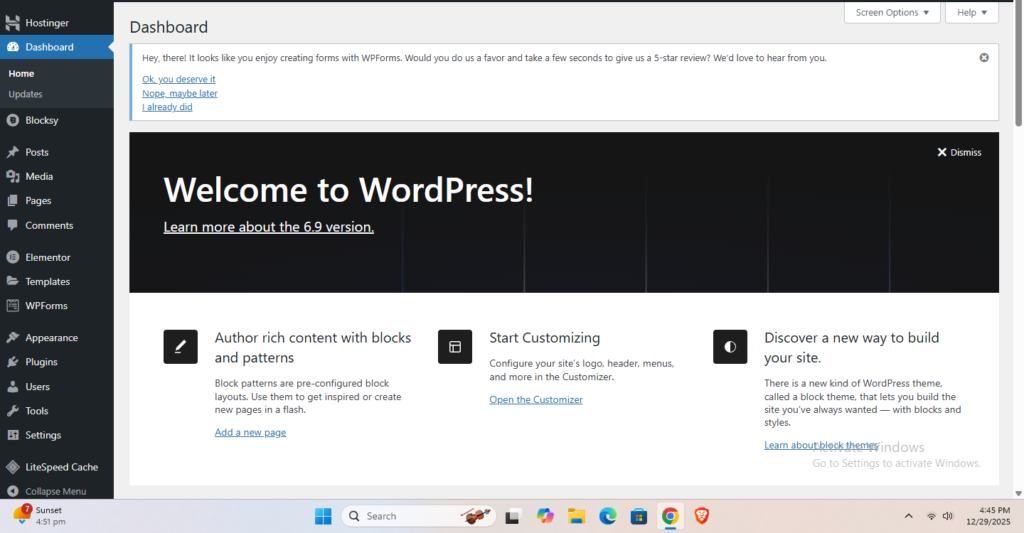
Step 4: The “Essential Four” Plugins
Regardless of your site type, you need these four pillars:
- SEO: Rank Math or Yoast.
- Security: Wordfence or Solid Security.
- Performance: WP Rocket or LiteSpeed Cache.
- Backups: UpdraftPlus (Always back up off-site).
Step 5: Designing with Gutenberg
The Gutenberg Block Editor is the standard. Learn how to use “Groups,” “Columns,” and “Reusable Blocks” to create complex layouts without a heavy page builder like Elementor.
Step 5: Install a Theme and Design Your WordPress Site
After installing WordPress, the next step is to choose a theme that controls your website’s layout, colors, and overall design, and build your WordPress website. You can install a theme from the WordPress theme directory or upload a premium theme if you’re using one.
To make designing pages easier, many users also install a page builder like Elementor and Spectra. Page builders let you design pages visually using drag-and-drop tools, making it simple to create professional layouts without writing code.
6. Deep Dive: SEO for WordPress
WordPress is inherently SEO-friendly, but you must optimize to rank on Google.
Technical SEO
- Speed: Use a lightweight theme and optimize images (WebP format).
- Sitemaps: Use your SEO plugin to generate an XML sitemap for Google.
- Schema Markup: Help Google understand your content (e.g., “Recipe” schema or “Product” schema).
Content SEO
Use the Block Editor to ensure proper Header Hierarchy (one H1 per page, followed by H2s and H3s). Ensure every image has Alt Text for accessibility and search crawlers.
7. WordPress for Business & E-commerce
WordPress isn’t just for bloggers. It powers some of the world’s largest stores via WooCommerce.
Why WooCommerce?
- No Monthly Fees: Unlike Shopify, the core plugin is free.
- Total Ownership: You own your customer data and store files.
- Infinite Flexibility: From physical goods to digital downloads and subscriptions.
Membership and LMS
With plugins like MemberPress or LearnDash, you can transform your website into a secure members-only platform or a complete online learning system. In 2025, this approach is growing rapidly as creators focus on building audiences they truly own rather than relying on rented social media platforms.
8. Advanced Development: The Professional’s Guide
For those looking to build a career in WordPress development, the learning curve has shifted toward JavaScript.
The REST API
WordPress now includes a full REST API. This allows you to use WordPress as a “Headless CMS.” You can use WordPress to manage your data, but build the frontend in React, Vue, or even a mobile app.
Custom Post Types (CPT) and ACF
Standard WordPress only has “Posts” and “Pages.” Professionals use Custom Post Types to create structured data, like “Properties,” “Team Members,” or “Testimonials.” Combined with Advanced Custom Fields (ACF), you can turn WordPress into a fully bespoke database application.
Hooks: Actions and Filters
Understanding the “Hook” system is what separates a beginner from a pro:
- Actions: Allow you to add functionality at specific points (e.g., sending an email after a post is published).
- Filters: Allow you to modify data before it is sent to the database or the browser (e.g., changing the length of an excerpt).
9. Security and Maintenance: Keeping the Engine Running
Because WordPress is so popular, it is a target. However, 99% of hacks are due to user negligence.
A 5-Point Security Checklist
- Never use “admin” as a username. This is the first thing hackers try in a brute-force attack.
- Use a Web Application Firewall (WAF). Services like Cloudflare or Wordfence block malicious traffic before it reaches your site.
- Update PHP regularly. Older versions of PHP have unpatched security vulnerabilities.
- Hide your login page. Change
/wp-adminto something custom, like/secret-entry. - Enable 2FA. Even if someone steals your password, they can’t get in without your phone’s code.
10. Common WordPress Errors and Solutions
Even the best sites run into issues. Here is how to fix the “Big Three”:
1. The White Screen of Death (WSoD)
Usually caused by a plugin conflict or a memory limit issue.
- Fix: Rename your
pluginsfolder via FTP toplugins_old. This deactivates everything and lets you back in.
2. Error Establishing a Database Connection
This means your site can’t talk to the MySQL database.
- Fix: Check your
wp-config.phpfile for typos in the database name, username, or password.
3. 404 Errors on All Posts
Your .htaccess file is likely corrupted.
- Fix: Go to Settings > Permalinks and just click “Save Changes.” This regenerates the file.
11. Comparison: WordPress vs. The Competition (2025)
| Feature | WordPress.org | Wix / Squarespace | Shopify |
| Ownership | Full Ownership | Rented Platform | Rented Platform |
| Customization | Infinite | Limited | High (for Ecom) |
| Ease of Use | Moderate | Very Easy | Easy |
| Monthly Cost | Low ($5-$30) | High ($25-$60) | High ($39+) |
| SEO Power | Best in Class | Good | Moderate |
12. Monetizing Your WordPress Site
Once you have traffic, how do you make money? WordPress offers more paths than any other platform:
- Affiliate Marketing: Use plugins like ThirstyAffiliates to manage your links.
- Ad Networks: Easily integrate Google AdSense or Mediavine.
- Sponsored Content: Create custom layouts for brand partners.
- Sell Services: Install a booking plugin like Amelia or Tutor LMS to sell coaching or consulting.
- Digital Products: Sell E-books or templates directly via your site.
13. The Future: WordPress and AI
As we move through 2025, Artificial Intelligence is being baked into the WordPress core.
- AI Writing Assistants: Tools that help you brainstorm headlines and write meta descriptions within the editor.
- AI Image Generation: Generating royalty-free images for your posts instantly.
- Automated Troubleshooting: AI bots that scan your error logs and suggest fixes.
Conclusion: Is WordPress Right for You?
WordPress is the only platform that is simple enough for a beginner’s first blog but powerful enough to run The White House website. It provides a level of future-proofing that proprietary platforms such as Wix or Squarespace cannot match. If you build a website on WordPress, you own your content, you own your data, and you own your future.